5 min readFahim Ahmmed
WordPress Speed Optimization Checklist: What to Do After You Buy a Premium Theme
The theme demo loaded instantly, your site does not. Ten fixes in order of impact, from hosting and demo cleanup to images, caching, fonts, and scripts.
- wordpress
- performance
- themes
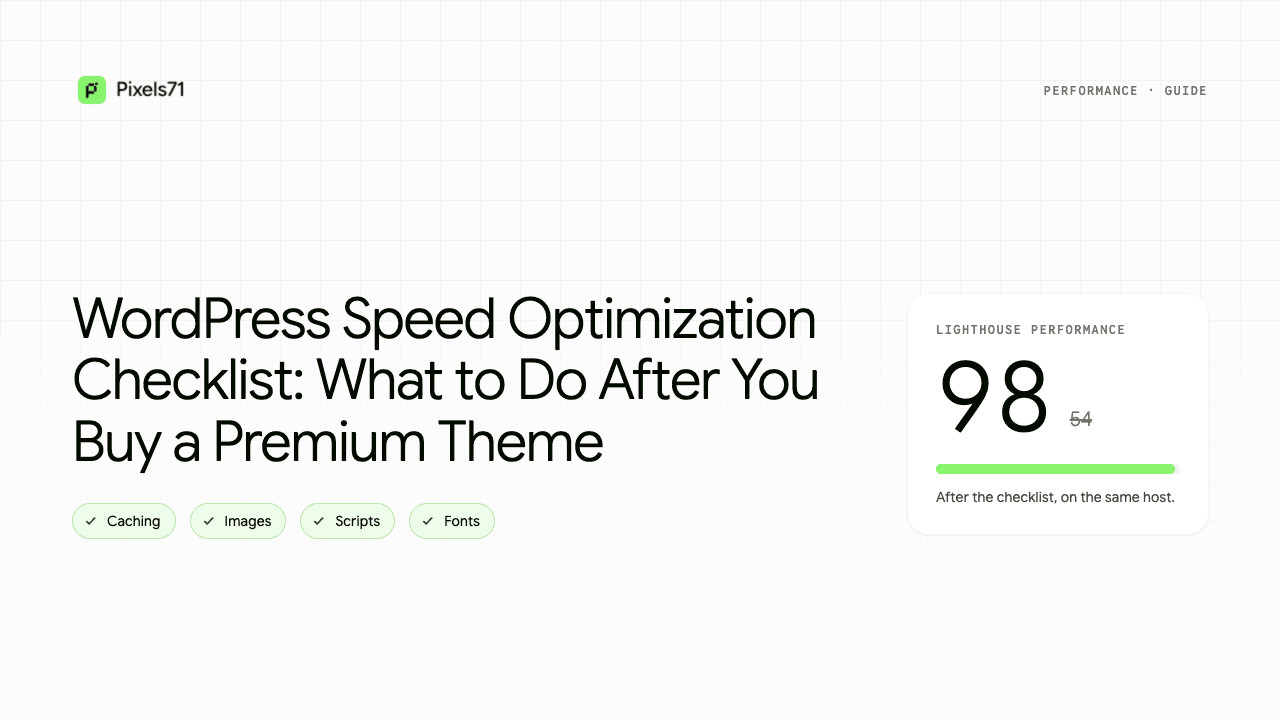
WordPress Speed Optimization Checklist: What to Do After You Buy a Premium Theme
You bought a premium theme. The demo loaded instantly. You imported it, added your logo and content, and now your homepage takes six seconds on mobile.
This is the most common frustration we hear from theme buyers, and it is rarely the theme. A demo runs on a tuned server with compressed images and nothing else installed. Your site runs on shared hosting with twelve plugins, a 4MB hero photo, and three Google Fonts. All of that is fixable in an afternoon.
Here is the checklist we walk our own customers through, in order of actual impact.
First: Measure
Run your homepage through PageSpeed Insights and note three numbers: Largest Contentful Paint (LCP), Cumulative Layout Shift (CLS), and total page weight.
Test the mobile tab. And ignore the score itself — Google ranks on real-world Core Web Vitals, not the number in the circle. Aim for LCP under 2.5s and CLS under 0.1, and the score follows.
1. Hosting and PHP
If you are on a $3/month plan, no plugin breaks through that ceiling.
- Check Tools → Site Health → Info → Server. Anything below PHP 8.1 should be upgraded in your hosting panel. Free, often 20–30% faster server response.
- Check TTFB in GTmetrix. Above 1 second means your server is the bottleneck and nothing below will save you.
- Enable HTTP/2 or HTTP/3 if your host offers a toggle.
2. Clean Up After Demo Import
The step most buyers skip, and the most expensive one.
One-click imports often bring in every demo the theme ships with, not just yours.
- Delete unused demo pages and posts, then empty the trash — trashed content stays in the database.
- Delete unused demo images. Imports are frequently 50–200MB of media you will never display.
- Disable theme demos and widgets you are not using. If your theme ships 60 widgets and you use 12, turn off the other 48.
- Delete bundled plugins you did not need, rather than leaving them deactivated.
This alone regularly halves page weight.
3. Images (60–70% of Page Weight)
- Serve WebP or AVIF. A conversion plugin handles it automatically. Expect 25–50% smaller files at the same visual quality.
- Resize before uploading. A full-width hero rarely needs to exceed 1920px wide.
- Compress everything. Aim for under 150KB per image, under 300KB for a hero.
- Keep lazy loading on, but exclude the hero. Lazy loading your above-the-fold image delays your LCP element — exactly backwards. Set your plugin to skip the first 1–2 images.
- Always set width and height attributes. Missing dimensions are the most common cause of layout shift on theme-built sites.
4. Audit Your Plugins
- Delete anything you are not actively using. Deactivated plugins still take up space.
- Install Query Monitor temporarily to see which plugins add the slowest queries. Free, and it replaces guesswork with a list.
- Watch for overlap — two caching plugins will fight each other.
- Be suspicious of addon packs with 300 widgets. They load their full asset registry whether you use one widget or none.
5. Caching
The biggest single win available to you.
- Install one caching plugin: page caching, browser caching, and GZIP or Brotli compression.
- Turn on preloading so the cache builds itself instead of making your first visitor wait.
- Exclude cart, checkout, account, and login pages.
- Clear the cache after every design change, then test in incognito. Half of all "my change didn't apply" tickets are a stale cache.
- Check whether your host already caches at server level — stacking both can cause conflicts.
6. Fonts
- Host fonts locally instead of pulling from a third-party CDN. Removes an external connection and avoids EU privacy complications.
- Limit to two families and three or four weights. Each weight is a separate file.
- Set
font-display: swapso text renders immediately in a fallback instead of staying invisible. - Preload your heading font.
7. CSS and JavaScript
Do this last. It carries the highest risk of breaking your layout.
- Minify CSS and JS — safe, small gain.
- Defer non-critical JavaScript.
- Remove unused CSS — effective and risky. After enabling it, click through every template: homepage, blog archive, single post, contact page, and anything with a slider or popup.
- Enable your builder's performance features. Elementor has several under Settings → Features (optimized DOM output, improved asset loading, inline font icons).
- Change one setting at a time and retest. Enable eight at once and you will not know which one broke your site.
8. Database Cleanup
- Limit revisions: add
define('WP_POST_REVISIONS', 5);towp-config.php. A page edited 80 times otherwise stores 80 full copies. - Delete spam comments, expired transients, and orphaned metadata left behind by plugins you removed months ago.
- Back up before optimizing tables. Always.
9. Third-Party Scripts
- Count what you load: analytics, ad pixels, live chat, heatmaps, review widgets, social feeds.
- Delay non-essential scripts until user interaction. Chat widgets do not need to load in the first second, and the gain here is often dramatic.
- Replace YouTube embeds with a click-to-load preview image. One standard embed can pull in over a megabyte before anyone presses play.
10. Verify
- Retest on mobile and compare against your starting numbers.
- Click through every template in incognito with caching active.
- Test that your contact form still sends — aggressive JS optimization breaks forms more than anything else.
- Check on a real phone over mobile data.
What Good Looks Like
On decent hosting, after working through this list: LCP under 2.5s, CLS under 0.1, page weight under 1.5MB, mobile score 75–95.
If you are chasing a perfect 100 on a homepage with a video hero and an animated slider, you are optimizing for a number instead of your visitors. A site at 82 with green Core Web Vitals beats a site at 98 with poor field data every time.
Every Pixels71 theme ships with conditional asset loading and the ability to disable unused widgets and demos, so you start from a clean baseline instead of fighting the theme.
Still slow after working through this? Email us at hello@pixels71.com — we also offer setup and speed optimization as a service if you would rather hand it off.